Getting started
How to put ClockGrapher on a computer, what it needs, and how to take it off again. The steps are for Windows and Linux.
What it needs
- A 64-bit PC with Windows 10 or 11, or a current Linux distribution that uses systemd: Ubuntu 22.04 or newer, Debian 12, Linux Mint 21 or Fedora, for example. There is no Raspberry Pi build and no 32-bit build.
- About 1 GB of free disk space while installing. Recordings need more as they build up, and the computer does not need to be fast.
- A microphone on each clock, or an audio interface for several. A clip-on contact microphone on the movement or the case works best.
- An internet connection for the first sign-in. A computer that is never online can use a licence file instead (see below).
- Administrator rights on Windows, or
sudoon Linux, because ClockGrapher runs as a background service.
ClockGrapher records all the time, even when your browser is closed. You look at it in a web browser, on the same computer or from a phone or tablet on the same network.
Installing on Windows
- Download the installer from the downloads page.
- The installer isn't signed yet, so Windows and your browser will be wary. If the browser says the file isn't commonly downloaded, choose Keep. When the blue Windows protected your PC box appears, click More info, then Run anyway.
- Accept the licence agreement, then choose the folders. The defaults are fine: the program goes in
C:\Program Files\ClockGrapherand your recordings and settings inC:\ProgramData\ClockGrapher. - Choose whether Windows should check the time more often (recommended: the rate of a clock is only as good as the computer's own clock), and whether the tray icon starts at sign-in.
- Choose what, if anything, you are willing to share. Everything is off until you tick it.
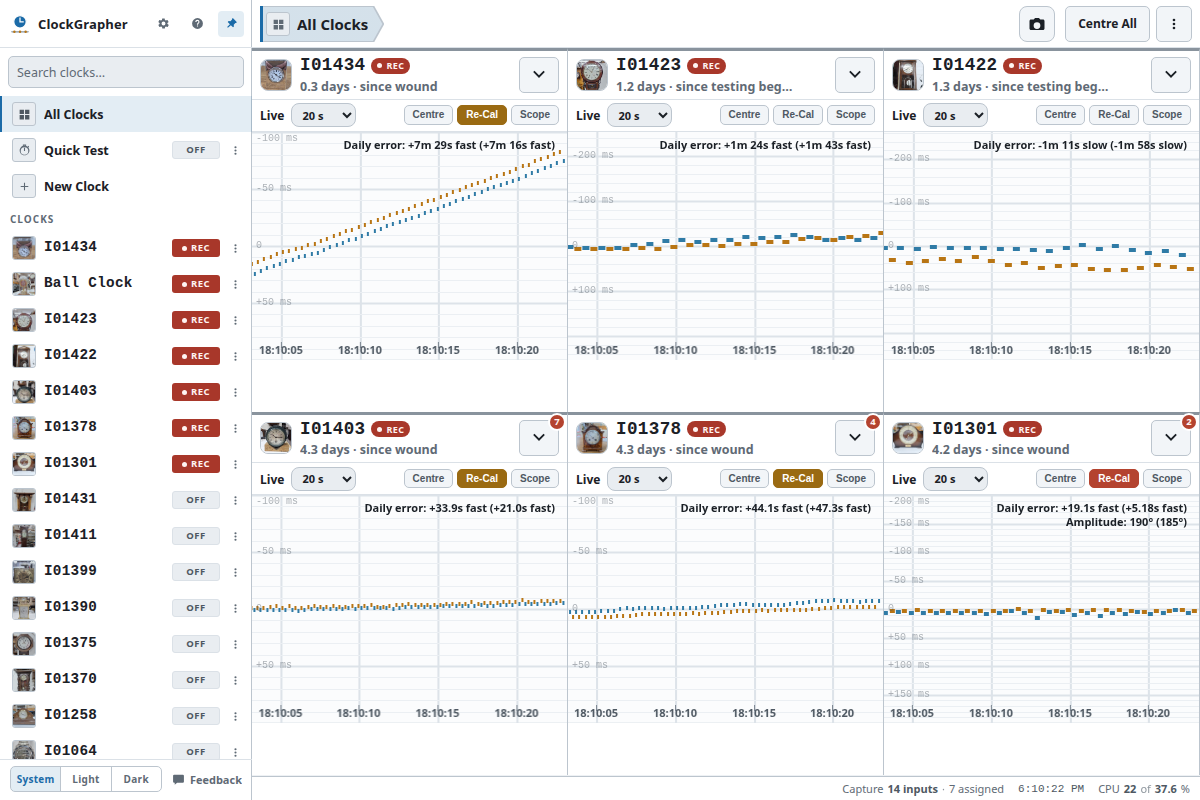
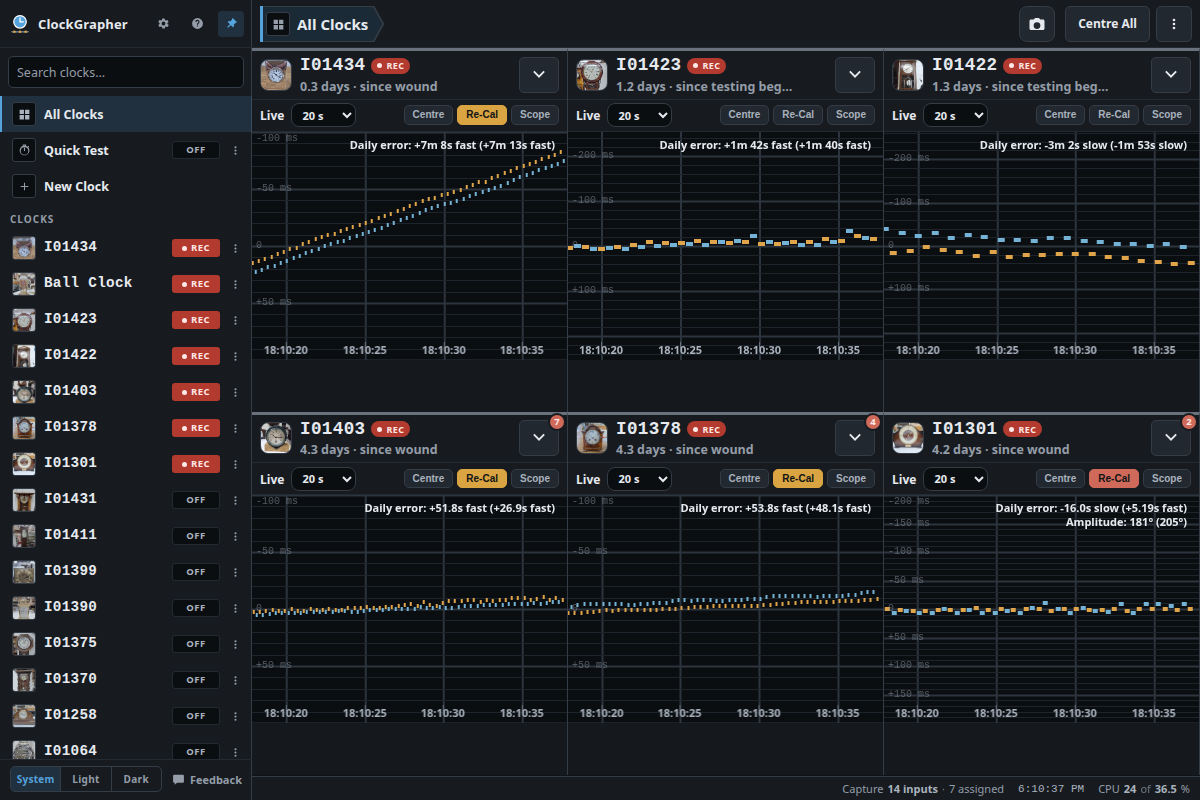
- Wait a few minutes. ClockGrapher will then open in your web browser, at
http://localhost:3600.
Installing on Linux
- Download the
.runfile from the downloads page. - Open a terminal in the folder you downloaded to and make it runnable:
chmod +x ClockGrapher-*-linux-x64.run - Run it:
./ClockGrapher-*-linux-x64.run. It asks for your password, because it installs a systemd service and a service account calledclockgrapher. - Accept the licence agreement and follow the pages: folders (the program goes in
/opt/clockgrapherand your data in/var/lib/clockgrapher), clock accuracy (it can install chrony, and turn off systemd-timesyncd, which works against it), the tray icon, and what you are willing to share. - ClockGrapher will open in your web browser, at
http://localhost:3600. In the future you can open it from the applications menu, the tray icon, or that address.
The user who ran the installer is added to the clockgrapher group, which lets that account start and stop the service. Log out and in again if the tray icon cannot control it straight away.
Signing in
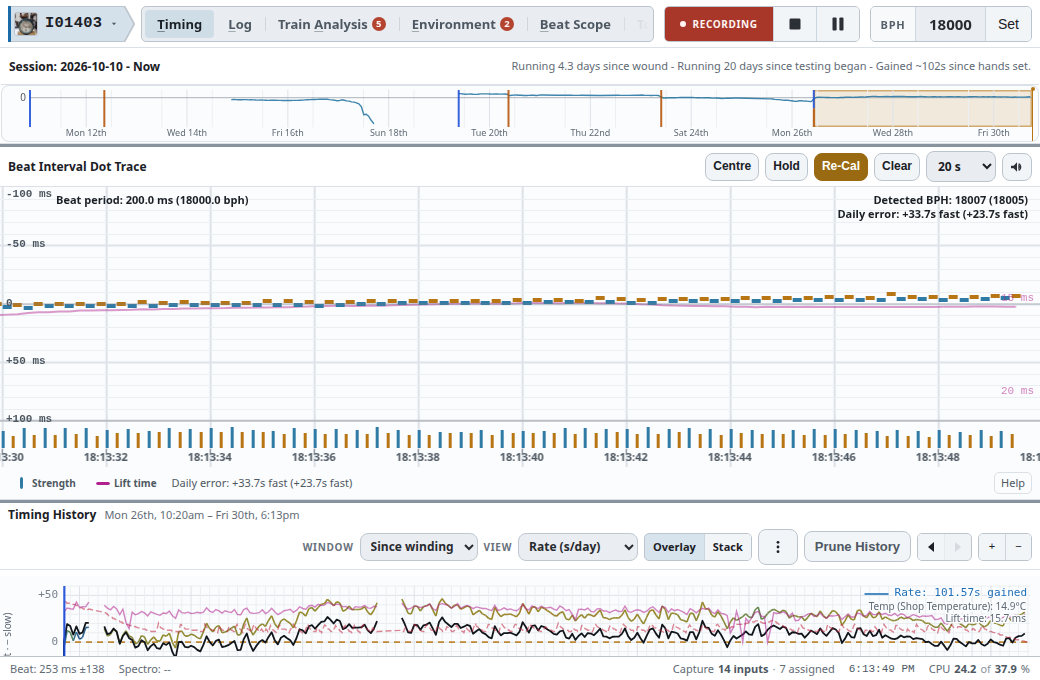
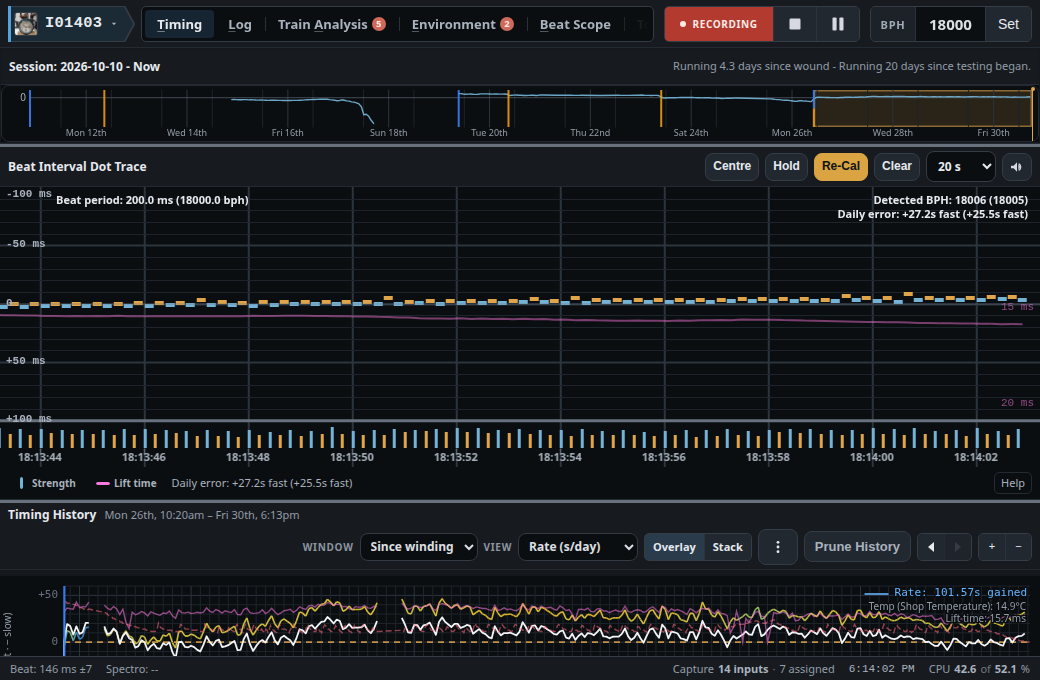
The first time, ClockGrapher asks you to sign in or sign up with your email address. An email with a link is sent, and the app carries on once you have opened it. There is no password to remember.
A computer with no internet
On any other device, sign in to your account page and download your licence file. Copy it to the offline computer, choose Add a licence file in ClockGrapher and open it. How licences work.
Uninstalling
Windows: open Settings, then Apps, choose ClockGrapher and click Uninstall. Linux: open Uninstall ClockGrapher from the applications menu.
The uninstaller has a box to tick if you want your recordings and settings deleted as well. If you leave it, they stay in C:\ProgramData\ClockGrapher or /var/lib/clockgrapher, and a later install will carry on where you left off. On Linux the clockgrapher service account stays too; the uninstaller's last page shows the command to remove it.
To free the licence for another computer, remove the install on your account page.
Stuck? See Support.